Exploring the feasibility of having AI directly read Figma designs and generate UI code.
Conclusion: Technically feasible, but fidelity is low in traditional XML projects. The investigation found that Jetpack Compose + Auto Layout is the ideal combination — production adoption requires both design and development teams to push for a tech stack upgrade together.
Figma MCP
MCP (Model Context Protocol) is a standard protocol enabling AI models to interact with external data sources and tools. cursor-talk-to-figma-mcp is built on MCP, establishing a bridge between Cursor and Figma that lets you directly:
- Read complete Figma design information (layers, styles, layouts, components, etc.)
- Edit Figma files (create shapes, modify properties, adjust layouts)
- Generate code: produce corresponding UI code from designs
Setup
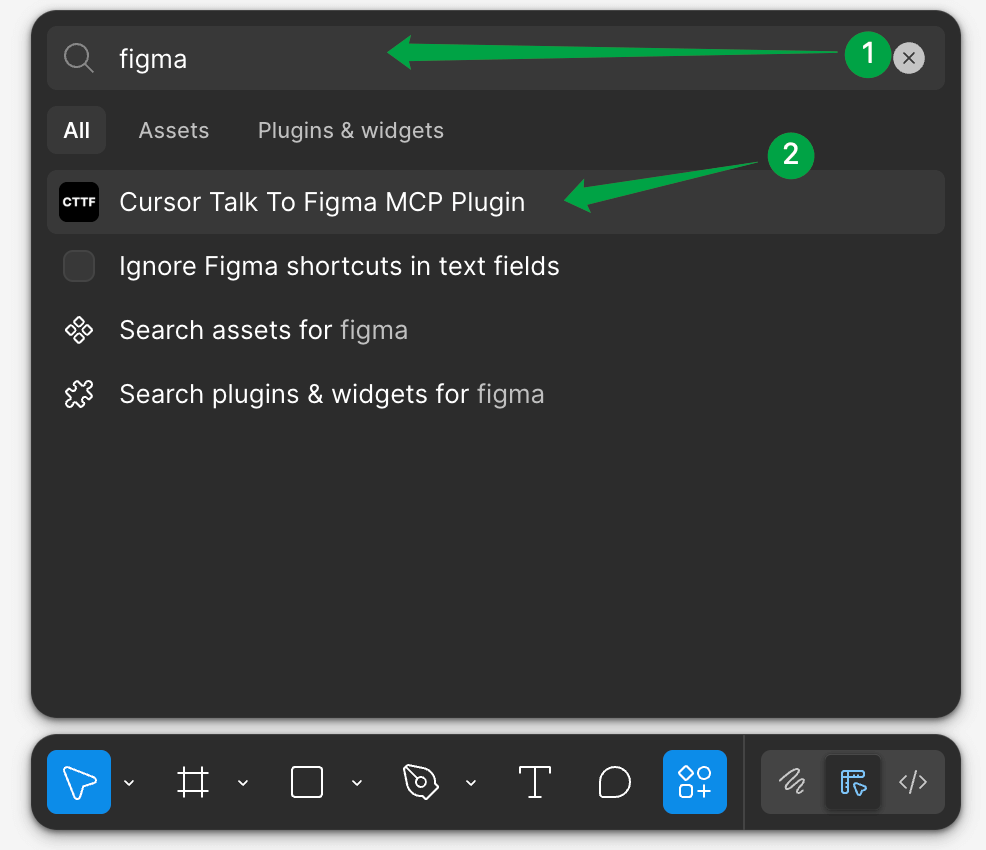
Step 1: Open Figma desktop, search for Cursor Talk To Figma MCP Plugin, and install it.
Step 2: The plugin and Cursor need a relay service to communicate. Open a terminal and run:
bunx cursor-talk-to-figma-socketThe service will listen on a local port once started. Keep the terminal window open.
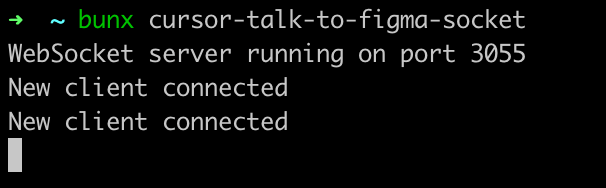
If you don’t have bun installed, first run
npm install -g bun.
Step 3: Open the plugin panel in any Figma file to see the Channel ID and MCP configuration info.
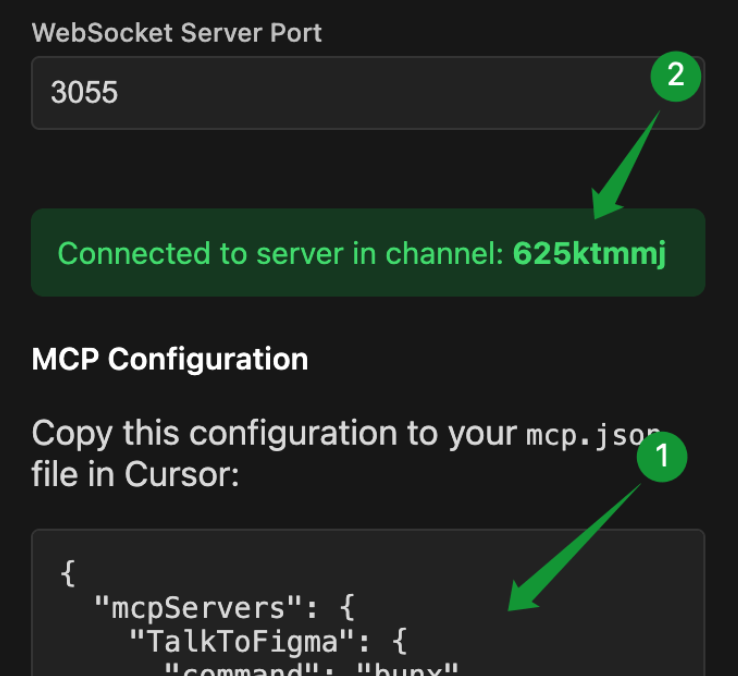
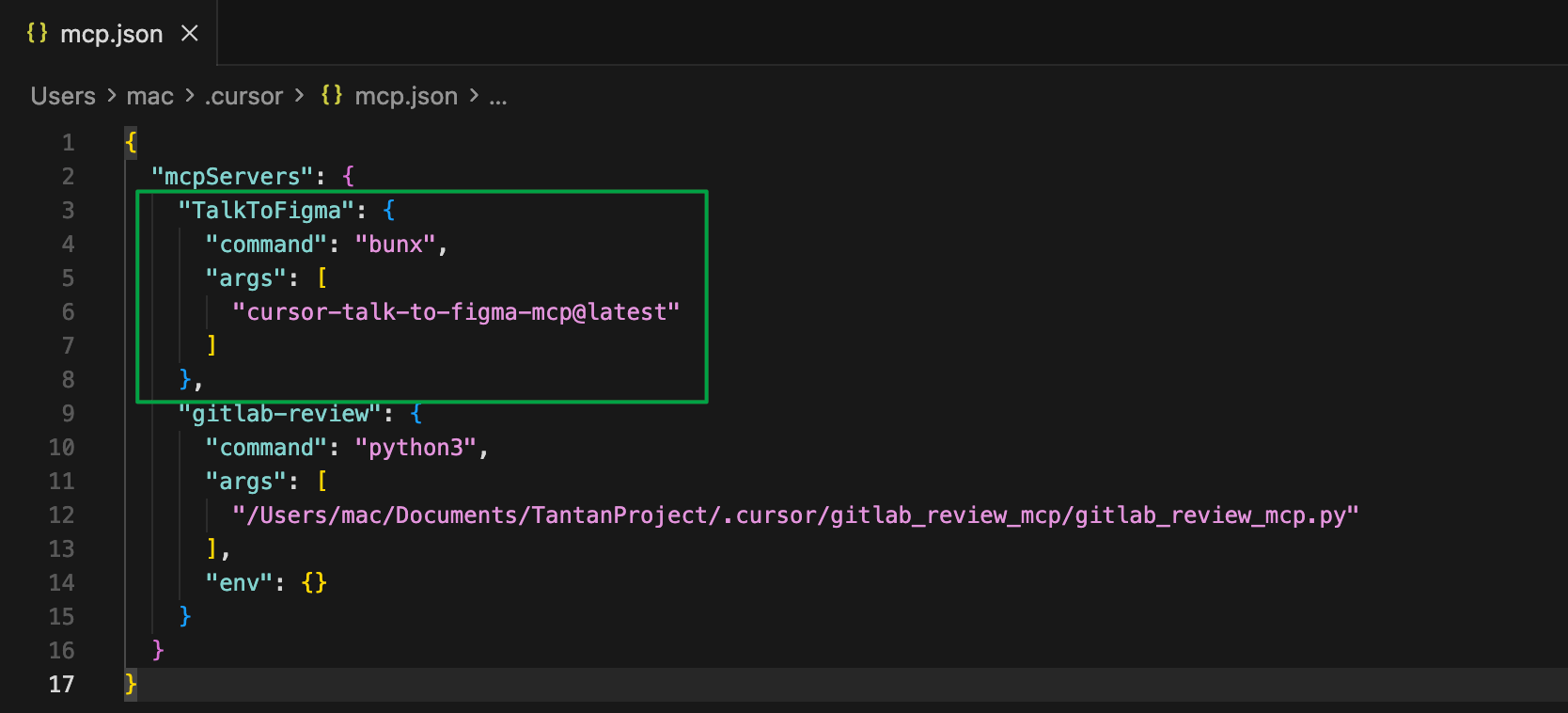
Step 4: Copy the configuration into Cursor’s mcp.json file.
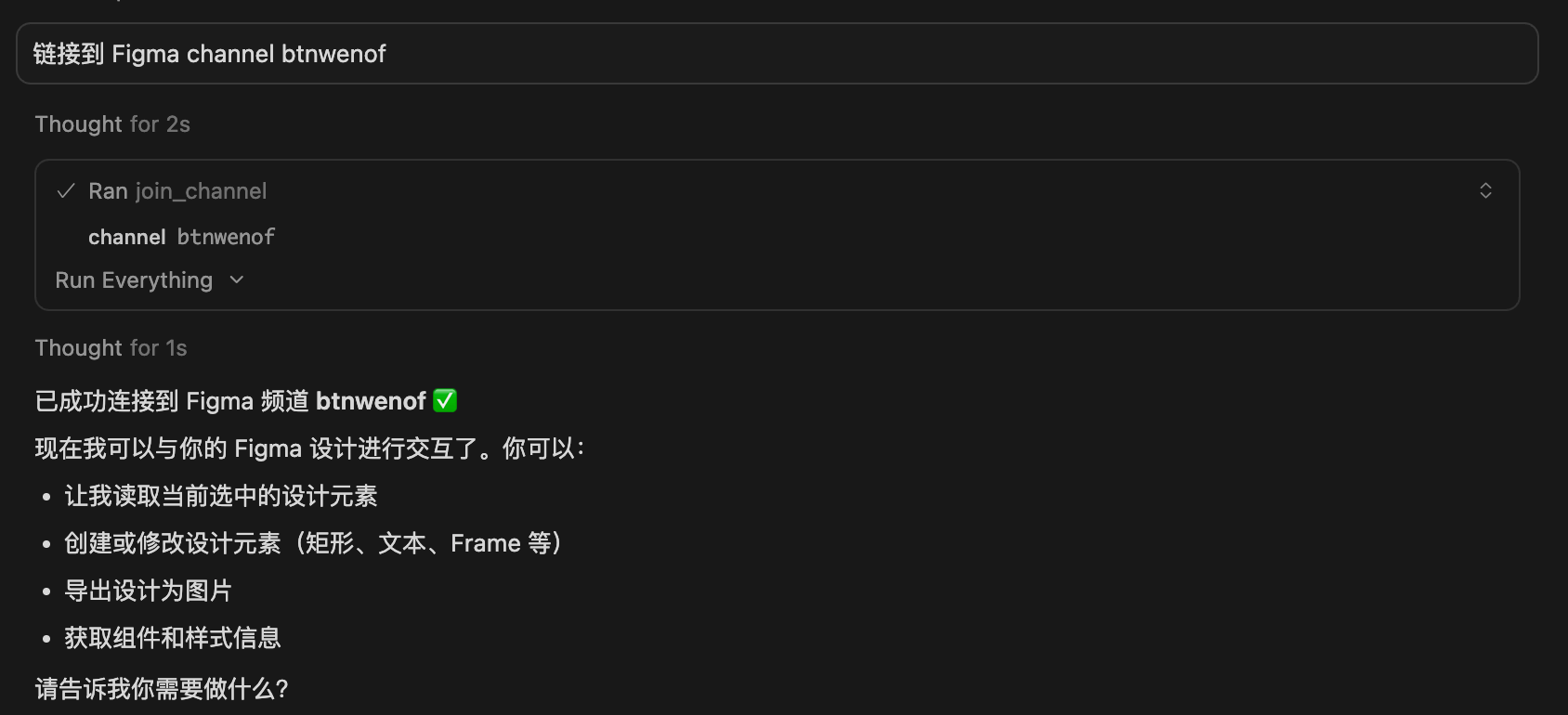
Once configured, you can interact with Figma designs directly from Cursor’s Chat.
Permission Issues
Setup went smoothly, but usage hit a snag: enterprise accounts lack edit permissions.
Figma’s account system has two dimensions:
| Dimension | Types |
|---|---|
| Account Type | Starter (free), Professional, Organization, Enterprise |
| Seat Type | Full Seat, Dev Seat, Collab Seat, View Seat |
Our company uses an Enterprise account with developers assigned View Seats (read-only), meaning you can only view but not edit in the company Figma — and the Figma MCP plugin requires edit permissions to function.
| Account | Seat | Can Use Plugin? |
|---|---|---|
| Company Enterprise | View Seat | No — no edit access in Drafts or Projects |
| Personal Starter (free) | Full Seat | Yes — full permissions in Drafts |
Workaround: Copy the design to a personal account. Open the target design in the company Figma, select the needed Frame, Cmd + C to copy, switch to personal account, create a new file in Drafts, Cmd + V to paste.
Fidelity
After setup, I tried using Cursor to generate XML layout files from designs. The result was usable but with mediocre fidelity — generated code needed extensive adjustments.
Problem 1: Geometric Layouts Lack Semantics
Traditional Figma layouts are geometric — designers position elements using absolute coordinates:
Text A → (x: 20, y: 50)Text B → (x: 20, y: 80)AI receives this data and only knows two text boxes are 30px apart vertically, but can’t determine the designer’s intent:
- Is this a vertical list with 30px fixed spacing?
- Are these two independent elements that happen to be aligned?
- Is this part of a list item that the designer manually duplicated?
AI can only guess using heuristics. Wrong guesses cause layout issues, and the guessing process itself consumes compute, affecting generation speed and accuracy.
Problem 2: XML Doesn’t Match Declarative Design
Even when designs use Figma’s Auto Layout (a declarative layout approach similar to frontend Flexbox), XML code generation results are suboptimal.
The root cause: Auto Layout is declarative, while XML layouts are imperative.
Auto Layout explicitly states “this is a vertical container with 30px spacing between children,” but converting to XML requires AI to translate these declarative rules into LinearLayout + layout_marginTop and other imperative attributes. This translation process loses significant information and is error-prone.
Investigation Conclusion
The investigation found that Jetpack Compose + Auto Layout is the ideal combination.
Compose is a declarative UI framework whose layout philosophy naturally aligns with Auto Layout. The mapping is:
| Figma Auto Layout Property | Jetpack Compose Implementation |
|---|---|
| Horizontal | Row { } |
| Vertical | Column { } |
| No Auto Layout / Group | Box { } |
| Fill Container | Modifier.fillMaxWidth() |
| Hug Contents | Modifier.wrapContentSize() |
| Fixed Size | Modifier.size(dp) |
| Padding | Modifier.padding() |
| Space between items | Arrangement.spacedBy() |
| Alignment | Arrangement.Center / Alignment.* |
Almost a one-to-one mapping. AI can directly map Auto Layout data to Compose code without guessing or conversion.
Current Value
Although it can’t perfectly reproduce UI in traditional XML projects, Figma MCP still offers value today:
- Extract design parameters: Quickly get color values, font sizes, spacing, border radius, etc. without manual measurement
- Understand page structure: Read layer hierarchy and naming to clarify component boundaries
- Generate skeleton code: Produce rough layout frameworks for fine-tuning
- Assist design reviews: Compare designs with implementations, quickly locate discrepancies
Treat it as an assistive tool, not a fully automated solution.
Upgrade Path
To truly leverage AI design-to-code capabilities, progress is needed from two directions:
Design Side
- Adopt Auto Layout everywhere: Organize all components declaratively, not with absolute positioning
- Establish a Design System: Unified design component library with standardized naming
- Component-oriented thinking: Design at the same component granularity as development
Development Side
- Migrate to Jetpack Compose: Declarative UI framework philosophically aligned with Auto Layout
- Pair with KMP (Kotlin Multiplatform): One set of Compose UI code usable on both Android and iOS
- Implement corresponding component library: One-to-one mapping between Figma components and code components
When both design and development adopt declarative paradigms and Figma components map to code components, AI only needs to “translate”:
Figma Auto Layout (declarative design) ↓ AI direct mappingJetpack Compose (declarative code)At that point, a designer adjusting a button’s border radius and spacing in Figma, followed by a developer having AI sync the code in Cursor, takes just seconds — a dramatic efficiency improvement.
The ideal tech stack: Cursor + Figma MCP + Jetpack Compose + KMP + Auto Layout.